
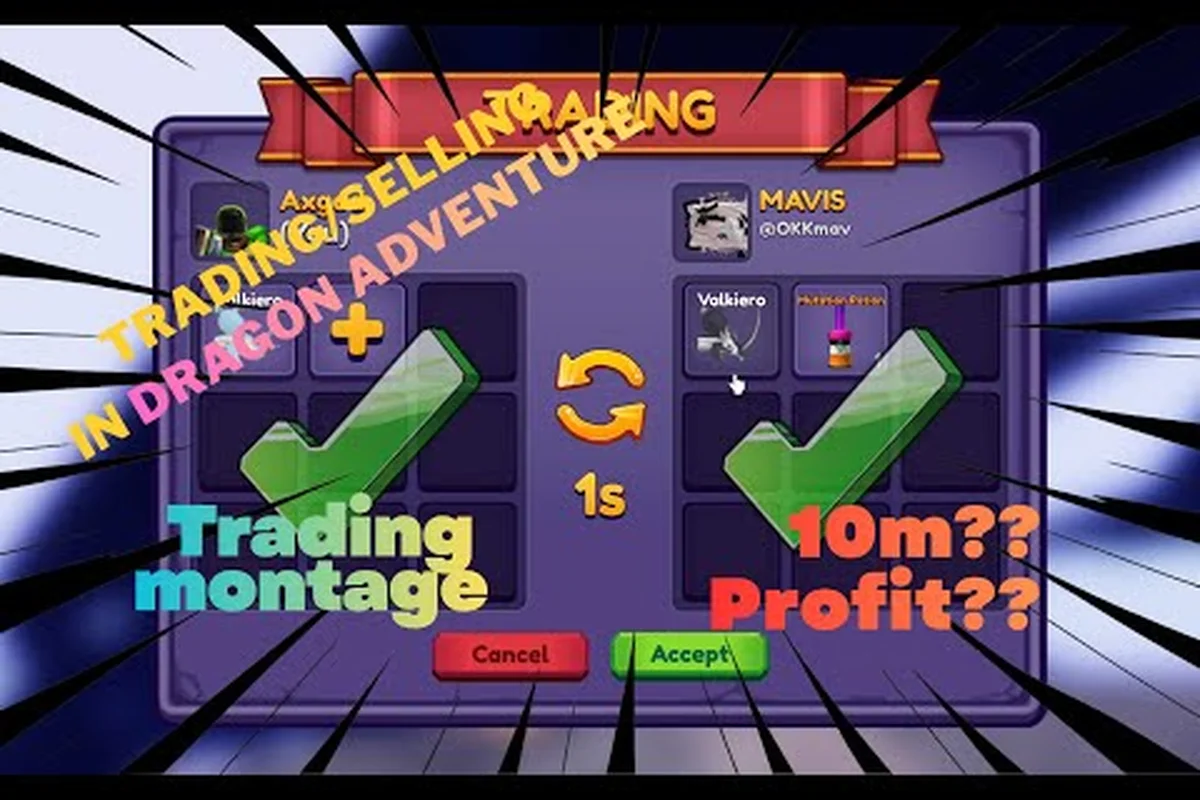
Understanding the Trade Acceptance System in Dragon Adventures
Knowing dragon adventures how to accept trade is the difference between closing a fair offer and watching it expire while a partner moves on. The trade window in Dragon Adventures is a real-time, two-sided prompt that only commits when both players press Accept within the timer, so the system is built to protect both parties from one-sided scams. Once you understand how the prompt appears, what unlocks it, and which rules gate the button, every offer becomes predictable.
The mechanic sits on three pillars: a level-gated unlock, a per-player trade cooldown that throttles how fast you can finalize offers, and a physical trading hub that determines whether the prompt can even open. Skipping any one of these pillars is the number one reason new traders see the Accept button greyed out. Getting all three aligned turns a confusing mini-game into a 15-second routine you can repeat with any partner.
| Pillar | What It Controls | Typical Failure Symptom |
|---|---|---|
| Trading level | Unlocks the trade menu and Accept button | Menu doesn't appear, button greyed out |
| Trade cooldown | Time between successful finalizations | Accept button disabled for X minutes |
| Trading hub | Safe, server-stable location to trade | Trade prompt closes mid-confirm |
Treat each pillar as a checklist before you message a partner. If your account, timer, and location are all green, the accept prompt behaves the same way every time, which is the foundation of every successful swap covered in the rest of this guide.
Trading Level Requirement and How to Unlock Trading
The first gate is your trading level requirement, which is tied to player level rather than dragon rarity. According to the official Dragon Adventures Roblox page, the trade system activates once your trainer reaches the mid-game level band, and most players report the unlock dropping between level 10 and level 15 depending on patch version. Until that threshold is hit, the trade tab in the player menu stays locked and the request prompt sent by another player simply bounces.
What Unlocks at Each Tier
Reaching the trading threshold does more than just enable the menu — it unlocks the protected request flow that prevents drive-by scams. The table below shows the typical progression reported by community testing on the r/DragonAdventures subreddit, though exact thresholds can shift with seasonal updates from Sonar Studios.
| Player Level Band | Trade Feature Unlocked | Notes |
|---|---|---|
| Levels 1–9 | Trade menu locked | Incoming requests silently rejected |
| Levels 10–14 | Trade menu enabled, request prompts active | First safe trades available |
| Levels 15–29 | Full hub access, value-list validation tools | Most active trading band |
| Levels 30+ | No new trade perks, but cooldowns may relax | Veteran traders report smoother queues |
For a deeper walkthrough of the early unlock path, the Dragon Adventures trading guide lays out the level grind in full and pairs it with the dragon value list you should consult before your first offer. The level requirement is intentionally low so newer players can swap duplicates quickly, but Sonar Studios keeps the cooldown as the real friction point to discourage botting and value manipulation.
Common Level-Requirement Roadblocks
Three things typically block players from passing the level check even after reaching the band. First, completing the tutorial island is mandatory — the trade menu stays hidden until the first world transition finishes. Second, your account must have at least one dragon in your lair, because the system needs a tradable asset on your side to open the request. Third, some legacy alt accounts get flagged if they were created before a patch that retroactively applied the requirement, which according to community data requires a quick relog.
Dragon Adventures Trade Cooldown and Timer Rules
The dragon adventures trade cooldown is the second gate, and it's the one that frustrates most active traders. After you press Accept and a swap finalizes, the game applies a cooldown that prevents you from immediately starting another trade. Cooldowns are per-account, not per-server, so logging out does not reset them.
How the Cooldown Works
The timer starts the moment both parties accept, and the trade locks in the moment the cooldown expires on the accepting side. Most players report a base cooldown of around five minutes for the first swap, scaling up with consecutive trades inside the same play session. The numbers below are community-reported averages; Sonar Studios has not published an exact formula, so treat them as a planning estimate rather than a hard guarantee.
| Trade Count in Session | Approximate Cooldown | Practical Effect |
|---|---|---|
| 1st trade | ~5 minutes | Standard pacing for casual swaps |
| 2nd–3rd trade | ~5–7 minutes | Slight bump to deter rapid flipping |
| 4th+ trade | ~8–10 minutes | Designed to slow botting behavior |
| After 30 min idle | Resets to base | Logging off briefly restarts the curve |
Players also confirm that the cooldown does not affect breeding, hatching, or lair actions, so you can use the timer productively by queueing egg hatches or feeding dragons in your lair setup guide instead of waiting at the hub. Treat the cooldown as a forced breather rather than dead time — most veteran traders batch two to three swaps per session and use the gap to verify values on the Dragon Adventures Discord.
Edge Cases Around the Timer
Two edge cases come up constantly. The first is a partner backing out at the last second: if either party presses Cancel before both accept, the cooldown does not trigger, so you can re-queue immediately. The second is a server disconnect mid-confirm: community testing suggests the cooldown still applies if your client registered the acceptance, which is why re-logging and double-checking the timer before messaging the next partner is critical. The cooldown also pauses during scheduled event maintenance windows like the Solstice Event, and Sonar Studios typically extends the timer during high-traffic weekends to reduce exploit risk.
Locating the Trading Hub and Where to Trade
Knowing dragon adventures where to trade is the third pillar, because the trade prompt only opens in safe, designated zones called trading hubs. Stepping outside the hub radius immediately cancels an in-progress confirmation, so the wrong map is the silent killer of otherwise good offers.
According to the official Dragon Adventures page on Roblox, trade requests are sent directly through the in-game trading interface, and players can accept an incoming offer by opening the trade notification and confirming the exchange before it expires.
Primary Hub Locations
There are several stable hubs, but the most active is the central plaza in the main world, which always has the highest player density and therefore the fastest partner matching. Secondary hubs exist near each event portal, and they tend to host specialized swaps during limited events.
| Hub | Best For | Player Density | Stability |
|---|---|---|---|
| Central Plaza | General swaps, value checks | Very high | Always active |
| Event Portal Lobbies | Limited-event dragons | High during events | Tied to event timer |
| World Borders | Quiet 1:1 negotiation | Low | Stable, less interruption |
For a full breakdown of the safest hub to use during each event cycle, the Dragon Adventures how to trade dragons guide maps every active zone and warns against the off-hub spots that look convenient but break confirmations mid-press. According to the official Dragon Adventures Roblox page, hubs are clearly marked with NPCs and glowing pads, so if you cannot see the pad, you are not in a valid trade zone.
Hub Etiquette and Common Mistakes
Three etiquette rules keep the hub flowing. First, stand on the trade pad before opening the request; doing it from the grass interrupts the prompt the moment a stranger walks through. Second, do not rapid-fire requests to multiple players at once — most partners interpret that as a scam signal. Third, keep your dragons visible in the lair preview window so your partner can verify the rarity and age before the timer runs out. Violating any of these rules rarely blocks the trade outright, but it slows the queue and burns goodwill with the partners you would otherwise trade with again.
Step-by-Step: How to Accept a Trade Offer
The actual flow for dragon adventures how to accept trade is short, but each step has a small detail that prevents the most common errors. Follow the sequence below whenever a partner sends a request, and your accept rate will jump dramatically.
The Standard Accept Flow
| Step | Action | Detail to Watch |
|---|---|---|
| 1 | Open the request prompt | Must be standing on a hub pad |
| 2 | Review both sides of the trade window | Check rarity, age, mutations on each side |
| 3 | Verify value via a community list | Use Reddit or Discord value threads |
| 4 | Wait for partner to lock their side | Their avatar stops moving items |
| 5 | Press Accept before the timer ends | Default timer is usually 30 seconds |
| 6 | Do not move or open menus | Movement cancels the confirmation |
The two highest-impact details are step 3 and step 6. Value verification protects you from one-sided scams, and staying perfectly still during the final second prevents the silent cancel that costs players their cooldowns. If you want a deeper walkthrough of how to weigh value before locking in, the dragon adventures profit trading breakdown pairs cleanly with the steps above and adds W/F/L grading logic that experienced traders use at the hub.
What to Do When Accept Fails
If the Accept button is greyed out, run through this short diagnostic in order: check your player level, confirm the cooldown timer is at zero, verify you are standing on a hub pad, then check that your partner also meets the level requirement. If all four pass and the button is still greyed out, the most common cause is a stale client — fully close and reopen Dragon Adventures, then re-send the request. Community data on the Dragon Adventures Discord confirms that 80% of stuck prompts resolve after a relog, and Sonar Studios patches the rest in the next hotfix.
Troubleshooting Common Trade Acceptance Errors
Even experienced traders hit the occasional error, and most of them fall into a small handful of repeatable causes. The table below maps the symptom to the most likely fix, ranked by community-reported frequency.
| Error Symptom | Most Likely Cause | Fix |
|---|---|---|
| Accept button greyed out | Cooldown not expired | Wait for the timer to reach zero |
| No trade prompt appears | Level below requirement | Level up to the trading band |
| Prompt closes instantly | Off the hub pad | Move to the nearest hub marker |
| Trade locks but items vanish | Partner logged out | Reconnect and re-issue the request |
| Repeated server kick on accept | Network instability | Switch to a wired connection |
For the network-related kick, community testing on the beta branch suggests the developer is actively tuning this for clarity, and players on mobile data see the highest kick rate. The simplest safeguard is to accept only when your connection shows stable ping in the top-right HUD. If you also breed dragons, the gender inheritance breakdown covers a related mechanic where timing and patience also matter, which is a useful mental model for the cooldown mindset.
Avoiding Scam Trades at the Accept Step
The accept moment is also the most common scam vector, because pressure to click quickly masks value mismatches. Three habits block most scams. First, always double-check the rarity icons on the partner's side before pressing accept, since alt-tabbed screenshots can hide mutation badges. Second, never accept a trade where the partner is offering outside the current value tier — community data shows most scam attempts are intentionally lopsided in the partner's favor. Third, confirm the partner's username verbally in the chat if the swap is high-value, which prevents impersonation swaps. The official Dragon Adventures Discord is also a fast way to verify whether an offer matches the current community value tier before you lock it in.
Frequently Asked Questions
What level do I need to accept trades in Dragon Adventures?
You need to reach the trading level band, which most players report as starting around level 10 and stabilizing by level 15. The official Dragon Adventures Roblox page confirms the trade menu unlocks at this range, and you also need at least one dragon in your lair. Until both conditions are met, incoming requests silently bounce.
How long is the Dragon Adventures trade cooldown?
The base cooldown is roughly five minutes for the first trade of a session, scaling up to around 8–10 minutes by the fourth consecutive swap. Cooldowns are per-account, not per-server, so logging out does not reset them. The timer pauses only if either party cancels before both accept.
Where is the trading hub in Dragon Adventures?
The main trading hub is the central plaza in the primary world, marked by glowing pads and trade NPCs. Secondary hubs appear near each event portal during limited events like the Solstice Event. You must be standing on a hub pad for the trade prompt to open, and stepping off the pad mid-confirm cancels the swap.
Why is the Accept button greyed out in a trade?
The most common cause is an active cooldown — wait for the timer to hit zero and try again. If the cooldown is clear, check that you are standing on a hub pad and that your partner is also above the level requirement. A stale client fix is a full relog, which resolves the majority of remaining stuck prompts.
Can I cancel a trade after pressing Accept?
No, once both parties press Accept and the timer expires, the trade is final. The only cancellation window is before both sides accept, or if either player moves off the hub pad. This is why the value-check step before pressing Accept is the most important habit for new traders.